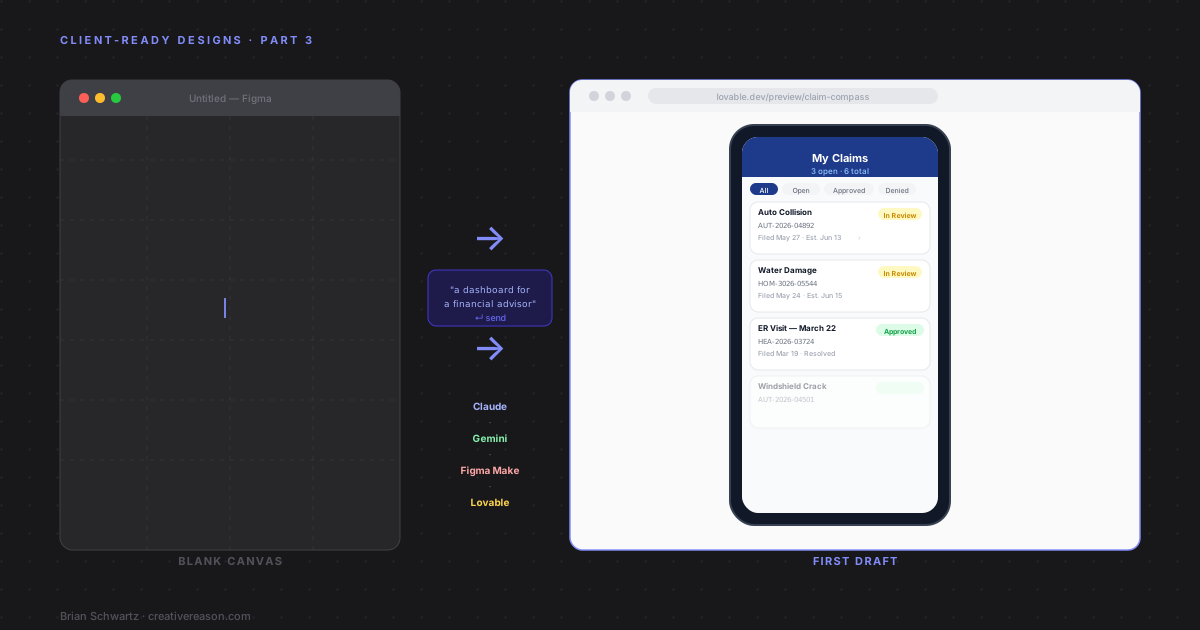
This is Part 3 of a series on creating realistic, client-ready designs. Part 1 covered populating Figma mockups with realistic data using Faker and Content Reel. Part 2 covered generating interactive code-based mockups using Claude and Cursor, skipping Figma entirely. This part looks at a different category: tools designed specifically to generate visual UI from a description.
Every design project has the same first thirty minutes. You open the tool. You stare at the blank canvas. You know exactly what the screen needs to do and you have no idea where to start.
Agentic design tools address that specific moment. Describe what you need, get a first draft back, start reacting to it. The output is not always right. It is almost always faster than building from scratch, and for regulated industry work where you need something credible in front of stakeholders quickly, that speed matters.
This post covers four tools: Claude, Gemini, Figma Make, and Lovable. They each take a different approach to the same problem, and they fit different points in a workflow.
What "agentic" means here
The term gets used loosely, so it is worth being specific. In this context, agentic means the tool is doing more than autocomplete. You give it a goal like "a dashboard for a financial advisor showing client portfolio summaries" and it makes a series of decisions about layout, components, hierarchy, and content to produce a complete starting point. You are not assembling pieces. You are describing an outcome and getting one back.
The difference shows up in the output. A non-agentic tool gives you a component when you ask for a component. An agentic one gives you a screen when you describe a need.
Claude
Claude generates visual UI as interactive artifacts directly inside the claude.ai interface. You describe a screen and it produces a rendered, working component you can click around in, right there in the conversation. No separate file to open, no terminal command to run.
Where Claude pulls ahead of the other tools in this post is brand-aware generation. You can attach a brand standards PDF, a screenshot of an existing screen, or both, and Claude uses that reference to inform the output rather than treating it as decoration. The results are not perfect, but they are close enough to be useful in a first draft in a way that other tools I tested were not.
I tested this on a real project. I worked on the mobile app for 2Rivers Church and had access to their brand standards and the existing app. I attached both to Claude and asked it to generate a screen that did not exist yet.
I'm attaching our brand standards guide and a screenshot of our existing mobile app. Using the same visual style, typography, and color palette, generate a "This Weekend" mobile screen for a church app. The screen should include: a hero image area for the current sermon series artwork with the series title and this week's sermon title overlaid; the weekend service times listed below with a "Plan My Visit" link; a Sermon Notes button that links to a downloadable PDF; a Child Check-In section showing check-in status (open or closed based on service time) with a button to start the check-in flow; and an Upcoming Events section showing the next three events as cards with title, date, and a brief description. 390px wide. Use the typefaces, primary and secondary colors, and button styles from the attached brand guide.
Claude picked up the color palette, button styling, and general visual language well enough that the output read as a draft of that product rather than a generic church app. It is not a substitute for a designer who knows the brand. As a starting point to react to, it was genuinely useful.
The main limitation is handoff. The artifact is a working prototype, not a Figma file. For internal reviews and early stakeholder feedback it is excellent. When you need to move it into a production workflow, copy the generated code out of the artifact and use the Cursor workflow from Part 2.
Gemini
Gemini approaches UI generation as part of a broader capability set rather than a design-specific tool. Where it earns its place in this workflow is layout exploration. It generates multiple structural approaches to a problem quickly so you have options to react to rather than a single output to accept or reject.
Worth being upfront: I tested Gemini with brand reference material attached and it did not incorporate the visual elements reliably. Colors and typography came back generic rather than matching the guide. If brand fidelity from reference material is the goal, Claude handled it better in my testing. Gemini is more useful when you want to see what different structural approaches to a screen might look like before committing to one.
The workflow starts at Gemini Advanced. Describe the screen and ask explicitly for variations. Gemini's output tends to be React or HTML. Specifying "generate as a single self-contained HTML file" saves you the step of assembling separate files.
A prompt focused on layout exploration:
Generate three different mobile layout approaches for an insurance claims list screen. Each version should show the same data (claim number, incident type, date filed, status badge, and estimated resolution date) but use a different visual structure. Version 1: a dense list optimized for scanning many claims. Version 2: a card-based layout with more visual breathing room. Version 3: a grouped layout that separates open claims from resolved ones. 390px wide for each. Use a clean neutral color scheme.
Seeing three layout options in the time it would take to sketch one is where Gemini's speed shows. The output needs styling work before it looks like a finished design, but as a way to pressure-test structural decisions early it is genuinely fast.
One more thing worth knowing: Gemini is noticeably better than the other tools in this post at generating SVG and vector elements. If you need an icon, an illustration, a chart shape, or any other vector asset, Gemini produces cleaner SVG code more reliably than Claude or Figma Make in my experience. I have pulled this into a cross-tool workflow. Jump to Gemini, ask it to generate the SVG, then bring that code back into whatever tool I am working in. In Claude you can paste the SVG directly into a follow-up prompt and ask it to incorporate the element into the existing design. In Figma you can drop the SVG file straight onto the canvas. It sounds like an extra step but it is faster than fighting with any single tool to get vector output right.
Figma Make
Figma Make is built directly into Figma, which means the output lands where most design workflows already live. If your team uses Figma for final deliverables, starting a first draft there means no conversion step later.
The core feature for first drafts is its ability to take a text description and generate a multi-frame layout on the canvas, pulling from your connected component library if one is available. If your team has a published design system in Figma, Make will use those real components rather than generating generic UI. That distinction matters in regulated industries. A first draft built from your actual component library looks like your product, not a generic SaaS dashboard. Stakeholders respond differently to something that uses their own visual language.
To use it, open a new Figma file and look for the Make panel in the right sidebar, or access it through the toolbar. Enter your description.
A mobile account summary screen for a retail banking app. Design for 390px wide (iPhone 15 viewport). Top section: a card showing account holder name, masked account number, account type, and current balance. Below the card: a horizontally scrollable row of quick action chips for Transfer, Pay Bill, Statements, and Support. Bottom section: a recent transactions list with date, merchant name, category, and amount. Use the connected mobile component library. Show the screen at natural phone proportions.
Figma Make works best with a component library connected. Without one, the output uses default components that will need reskinning before they look like your product. If you are working without a design system, Claude or Lovable will get you further faster.
Lovable
Lovable was not part of my original toolkit for this series. I kept hearing about it and decided to put it through its paces for this post rather than write about it secondhand. The hype is mostly warranted, with one caveat about where it actually fits.
Lovable generates full React applications from a description. Not a component or a static mockup but a running app with routing, state, and working interactions. You describe what you need at lovable.dev, and it builds the thing, then gives you a live preview URL and a connected GitHub repo.
For a data-heavy UI like the kind this series focuses on, that is genuinely useful. A prompt like the one below produces something you can hand to a stakeholder as a link, not a file.
Build a mobile-first insurance claims tracking app. The main screen is a claims list showing open and recent claims. Each claim card should show claim number, incident type (auto, home, health), date filed, current status (Submitted, Under Review, Approved, Denied) with a color-coded badge, and an estimated resolution date. Tapping a card opens a claim detail screen showing a status timeline, assigned adjuster name and contact, documents uploaded, and a message thread. Use a clean professional color scheme appropriate for an insurance product. Populate with realistic fake claims data across a mix of statuses.
The caveat is worth being direct about. Lovable builds for general use cases, and the output reflects that. Getting it to match a specific visual language, an existing component library, or precise layout requirements takes more iteration than Claude or Figma Make. It is best used when you want a working, shareable first draft quickly and the fidelity to a specific design system is not the priority yet.
For teams in regulated industries who need to show something interactive to stakeholders before a design system is locked in, it earns its place in the workflow. For teams with an established component library who want the mockup to match the product closely, start with Figma Make or the shadcn workflow from Part 2.
Choosing the right starting point
- ClaudeThe default for most solo work or small teams. No setup, no project configuration, just a prompt and a working artifact. It also handled brand reference material better than anything else I tested. If matching an existing visual language from a standards doc matters, start here.
- GeminiEarns its place when you want layout options rather than a single output. Faster at generating structural variations on a screen than the other tools, which makes it useful earlier in the process when you are still deciding on the approach rather than executing on one.
- Figma MakeThe right call when your team is already in Figma with a published component library. The first draft uses your real components, which closes most of the gap between draft and final deliverable before you have done any manual work.
- LovableThe tool to reach for when you want something interactive and shareable fast, and fidelity to a specific design system is not the immediate concern. It produces a running app, not a static mockup, which changes what you can put in front of a stakeholder.
If you found this useful or want me to write about something similar — shoot me a note.
Brian Schwartz
UX & Product Design Leader with 20+ years building design systems, enterprise applications, and high-performing teams across consulting, enterprise, and startup environments.