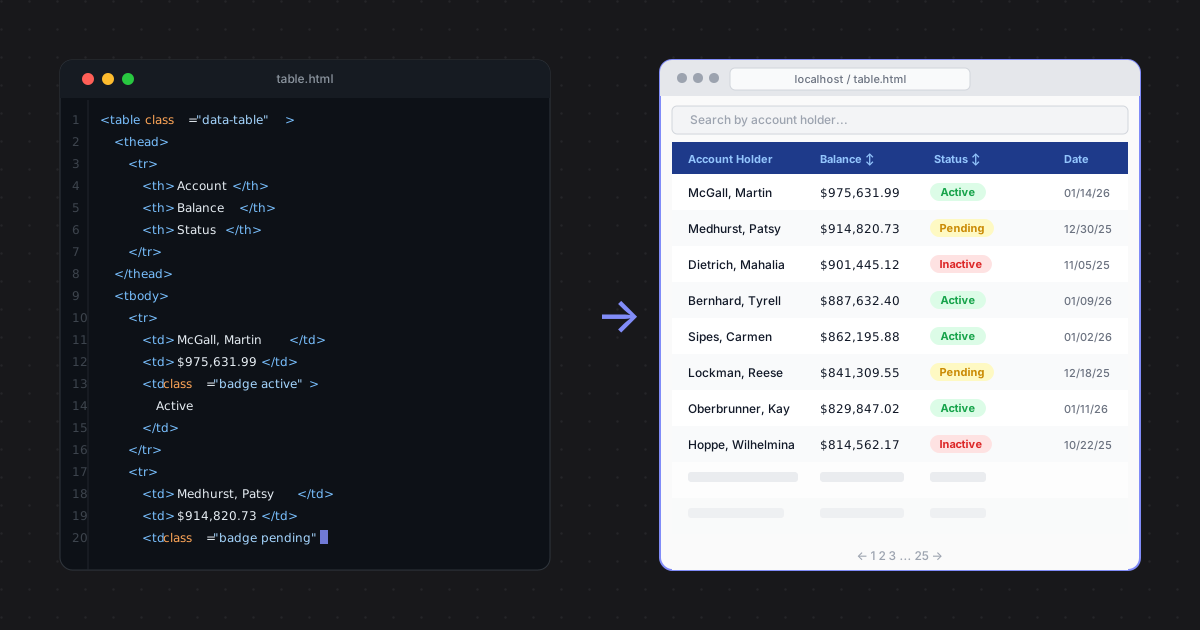
This is Part 2 of a series on creating realistic, client-ready designs. Part 1 covered populating Figma mockups with realistic data using Faker and Content Reel. This part takes a different approach: generating the mockup itself as working code, skipping Figma entirely.
If you have ever spent an afternoon building a 12-column financial data table in Figma, you know the problem. Auto-layout breaks when you add a column. Hover states are separate frames that don't hover. Sorting is a simulation, not a behavior. And when the client asks whether the table can handle 500 rows, the honest answer is that you have no idea because you drew a picture of a table.
There is a better approach for this kind of work, and it does not involve opening Figma.
Describe what you need to an AI tool, let it generate working HTML or React, open that in a browser. The result is interactive, resizable, and looks like a real product because it functions like one. For data tables, dashboards, and any UI that is too dynamic to prototype well in Figma, this workflow is faster and produces something more useful in a feedback session.
This post walks through two tools that each fit a slightly different part of the workflow, Claude and Cursor, and one scenario for teams that already have a component library in production.
Why code-based mockups make sense for data-heavy UI
Figma is excellent for layout, component design, and anything visual-forward. It is not built for UI that is fundamentally about data behavior: sorting, filtering, pagination, conditional row formatting, sticky headers, scrolling. You can approximate those things in Figma, but approximating them does not tell you whether they actually work.
A working HTML mockup does. You can tab through it, resize the browser, see how the table behaves when a data column is longer than expected. That is useful feedback to have before a line of production code gets written.
The prompt is where most of the work happens
A vague prompt gives you a generic table. A specific one gives you something that looks like it belongs to a real product.
Here is the kind of prompt that works:
Generate a responsive HTML/CSS/JavaScript data table for a financial services dashboard. Columns: Account Number, Account Holder (Last, First), Account Type, Balance (formatted as USD with commas and two decimal places), Status (Active/Inactive/Pending), Last Activity Date. Include sortable column headers, alternating row colors, a sticky header on scroll, and a search/filter input at the top. Use a clean professional color scheme: dark navy header, white rows, light gray alternating rows. No external libraries. Populate with 20 rows of realistic fake data.
The more specific you are about column names, data formats, and behavior, the less editing you will do after.
Copy the response, paste it into a new file called table.html, and open it in a browser. You have a working, interactive table in under five minutes.
Claude
Claude (free week with that link) is the fastest starting point. No setup, no installation. Open the browser, type a prompt, get code.
It handles multi-component UIs well. If you need a sidebar navigation alongside the table, a summary stats bar at the top, and a row-click modal, you can describe all of that in one prompt and usually get it back as a single HTML file.
A few things that consistently improve results:
- —Ask for everything in a single file. This avoids dealing with linked CSS and JS files during prototyping. One file is easier to share and easier to hand off.
- —Include sample data rows in the prompt. Do not just say "financial account data." Give it four or five rows of realistic fake data — account numbers, names, balances — and it will use those as the template for the rest. The output looks like a real screen, not a placeholder.
If you followed Part 1 of this series, you already have Faker scripts that produce exactly this kind of data. There are a few ways to bring that into this workflow. The simplest is to run your Faker script, copy a handful of rows from the output, and paste them directly into the prompt as sample data. Claude uses the format and values you provide to generate the rest of the rows consistently.
If you want the generated file to use a larger dataset, export your Faker output as JSON and upload it alongside the prompt. Tell Claude to use it as the data source: "Use the attached JSON file as the row data for this table." The generated code will reference those exact values rather than inventing its own.
The third option is to skip running the script yourself and ask Claude to generate the data inline. A prompt like "Generate 20 rows of realistic financial account data using the same conventions as the Faker library — formatted dollar amounts between $100,000 and $999,999, names in Last, First format, masked account numbers" gets you data that matches what your Faker script would produce, without the extra step.
Specify the number of rows explicitly regardless of which approach you use. "Populate with 20 rows" is clearer than leaving it open. Twenty rows is usually enough to show pagination behavior and make the table feel real during a feedback session.
Cursor
Cursor is a code editor built on VS Code with AI built in. The practical difference from using Claude in a browser is that Cursor works directly on your files. You can ask it to modify the table you already generated rather than regenerating it from scratch.
This matters when you are in iteration mode. The client wants a second status column, a date range filter, or different color treatment for overdue accounts. In Claude's browser interface, you would paste the whole file back in and re-prompt. In Cursor, you highlight the relevant section and ask it to change just that part.
Setup is fast. Download Cursor (referral link — new users get 50% off Pro, Pro+, or Ultra at Stripe checkout), open it, drag in your table.html file. The AI assistant lives in the sidebar.
A workflow that works well: use Claude to generate the initial prototype, then move to Cursor for everything after that. Targeted edits are faster there, and you keep a running history of what changed.
One underused feature in Cursor is model switching. The AI sidebar lets you change which model is generating the response — swap between Claude, GPT-4o, Gemini, and others without leaving the editor. If a prompt is not producing what you want, switching models and running it again takes five seconds. Over a few projects you develop a sense for which model handles which type of UI better. That is worth knowing if you are not on an enterprise team locked into a single provider.
GitHub Copilot — If your team already has a GitHub Enterprise license, Copilot is likely included or available at minimal additional cost. The prototyping workflow inside VS Code is essentially the same as Cursor — describe what you want in the chat panel, get code back, apply it inline. It does not have Cursor's model-switching capability, but for teams that do not want to introduce another tool into the stack, it handles the same tasks well. Worth checking with your engineering lead before paying for Cursor separately.
If you already have a design system
The HTML approach works well for standalone prototypes. But if your team ships a product built on an existing component library, there is a better option: generate the mockup using those exact components.
shadcn/ui is a good example because it's common enough that most AI tools understand it without much hand-holding. The principle applies to any component library your team uses.
The difference matters in feedback sessions. A mockup built with your actual components uses your real typography, spacing, colors, and interaction patterns. It does not just look like your product. It behaves like it. When a stakeholder asks "will the status badge really look like that?" the answer is yes, because that is the actual component.
The setup
If you already have a Next.js project with shadcn installed, open it in Cursor and work there. Cursor reads your project dependencies and already knows what components are available. You do not need to explain what shadcn is or how it works.
If you are starting from scratch and just want a sandbox, scaffold one in a few commands:
npx create-next-app@latest mockup-table --typescript --tailwind --eslint
cd mockup-table
npx shadcn@latest init
npx shadcn@latest add table badge input button
That gives you a working Next.js project with the components installed. Open it in Cursor and you are ready to prompt.
How the prompt changes
Instead of asking for custom CSS, you name the components directly:
In this Next.js project with shadcn/ui, create a page at /accounts that renders a data table using the shadcn Table, TableHeader, TableBody, TableRow, and TableCell components. Columns: Account Number, Account Holder (Last, First), Account Type, Balance (USD, formatted with commas and two decimal places), Status, Last Activity Date. Use the shadcn Badge component for the Status column — green variant for Active, yellow for Pending, red for Inactive. Add a shadcn Input above the table for filtering by account holder name. Populate with 20 rows of realistic fake data as a static array.The output is a React component that plugs directly into your existing project. No style conflicts, no color mismatches. Run npm run dev and open the page in a browser.
One shortcut worth knowing: Vercel's v0.dev is a tool built specifically to generate shadcn/ui interfaces from a prompt. It does not replace Cursor for iteration, but it is useful for generating a first draft quickly when you do not have a local project ready.
Choosing the right tool
Claude is the starting point for most projects. Fast, high-quality output, no setup. If you are generating a prototype from fake data with no real PII involved, it is all you need.
Claude Code takes the same models into the terminal. It runs as a CLI and works directly inside an existing codebase rather than through a browser interface. The tradeoff relative to Cursor is that Claude Code is limited to Anthropic's models only. If comparing outputs across providers matters to your workflow, Cursor gives you that flexibility. One advantage of staying in the Claude ecosystem: Claude now ships Claude Design, a visual UI generation tool that outputs designs rather than code. Part 3 of this series covers Claude Design alongside other agentic design tools built for visual UI generation.
Cursor earns its place once you are iterating. If a design is going through multiple rounds of client feedback, the ability to make targeted edits without re-prompting the entire document saves real time. It is also the right choice when you are working inside an existing project with a component library, and the model-switching feature is useful if you want to compare outputs without committing to a single provider. If your team already has a GitHub Enterprise license, check whether GitHub Copilot is available before adding another subscription — the workflow is similar enough that it may cover what you need.
What's next: Part 3 looks at agentic design tools built specifically for visual UI generation: Claude, Gemini, Figma Make, and Lovable. Where this post focused on generating code you open in a browser, Part 3 covers tools that output something that looks like a design from the start. If you have ever stared at a blank canvas trying to find a starting point, that one is for you.
Brian Schwartz
UX & Product Design Leader with 20+ years building design systems, enterprise applications, and high-performing teams across consulting, enterprise, and startup environments.