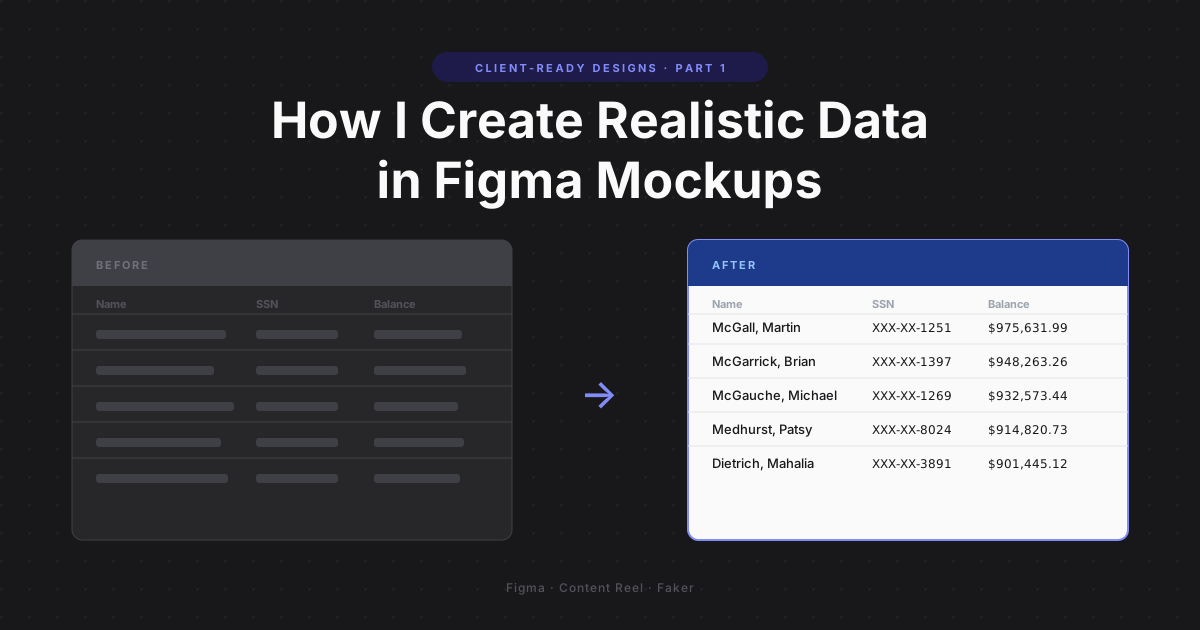
This is Part 1 of a series on creating realistic, client-ready designs. Part 2 covers designing data-heavy UI — including complex tables — using AI-generated code that skips Figma altogether.
If you are a UX / UI designer and have ever had financial services, fintech, insurance or similar clients, you know they are sticklers for details. Show random numbers, lorem ipsum, or obviously fake data in a mockup and your user testing or feedback session goes sideways fast. Participants fixate on whether the account balance looks right instead of whether the workflow makes sense.
Over time I developed a repeatable process for populating mockups with data that looks real enough to keep everyone focused on the design. It uses two tools: the Content Reel plugin for Figma, and Faker to generate the data that feeds it.
Content Reel
Content Reel is a free Figma plugin built by Microsoft. It lets you select text layers in your design and bulk-populate them with content from a list — either public datasets contributed by the community, or private lists you upload yourself.
That private option matters when you are working in regulated industries. Even fake data that looks sensitive needs to stay off public servers, and Content Reel handles that cleanly.
Faker
Faker is a Ruby gem — also available in Python and JavaScript — that generates realistic fake data across hundreds of categories: names, addresses, phone numbers, company names, financial figures, and more. The script you write controls the format precisely, so the output matches exactly what your client's real data looks like.
Here's an example script I used for financial services work:
What it produces:
- —City names — 20 random cities via
Faker::Address.city, useful for branch location fields or address columns. - —Formatted dollar amounts — 50 numbers between 100,000 and 999,999, formatted with two decimal places and comma separators, sorted descending. This gives you a believable portfolio or account balance list.
- —Full names (last, first) — 50 names in Last, First format via
Faker::Name, matching the standard convention in most financial account tables.
Run the script and copy each output block into its own plain .txt file, one value per line. These are what you'll upload to Content Reel.
Step 1 — Install Content Reel
Go to the Figma Community, search for "Content Reel," and hit Install. Once installed, open it from the plugins menu inside any Figma file. You'll land on the Home tab.
Step 2 — Upload your custom data
Click the Add tab at the top of the plugin panel. Give your dataset a name — something descriptive like "Numbers 100K to 999K" or "Full Names Last First" — then paste in your list or upload the .txt file directly.
Set the visibility to Private for any client work. Private datasets stay in your account and are not searchable by other Content Reel users.
Once saved, your datasets appear under My Content. Here's what mine looks like after a few projects:
You can see the datasets I keep on hand for financial mockups: large formatted numbers at two different ranges, full names in last-name-first format, school districts, and masked SSNs. Each one was built to pass the "does this look real?" test with a client who would notice immediately if it didn't.
Step 3 — Apply data to your layers
Open your mockup and select the text layers you want to populate — a column of account balances, a list of customer names, whatever the screen calls for.
With your layers selected, switch back to Content Reel and click on the dataset you want to apply. Content Reel fills each selected layer with a different value from your list, working top to bottom.
If a particular value isn't working, reselect that layer and click again to cycle to a different entry. You can also reshuffle the whole selection for a fresh batch. It's easy enough to add sorting and other details so your table or component data works as needed based on how you want to prototype or show real behavior.
What's next: Part 2 takes a different approach entirely. Instead of populating Figma mockups, I'll show how to use agentic AI tools to generate production-ready table designs directly in code with no Figma required. If you have ever spent an afternoon wrestling with a 12-column data table in Figma, that one's for you.
Brian Schwartz
UX & Product Design Leader with 20+ years building design systems, enterprise applications, and high-performing teams across consulting, enterprise, and startup environments.